📦 Allocation (Linking Cost & Source)
What is Allocation?
Allocation in Sourcemaster tells the system where your ordered items come from and what their actual sourcing cost is.
In other words, it connects your Sales Order (SO) with its Purchase Orders (POs) or inventory stock, giving you full visibility of cost origin and supplier relationships.Why It Matters
Normally, you can leave this section blank — but adding allocation makes your operation a lot more transparent and accurate.
It helps you track:
The true sourcing cost behind each sale.
Whether the items came from a supplier, warehouse stock, or multiple sources.
The relationship between your Sales Orders and Purchase Orders.
This is especially useful when you sell mixed goods or handle multiple suppliers.
Example: Real-World Case
Imagine you sell 50 drawstring bags at $2.50 each.
You can set that you bought them at $0.70 per piece from your supplier.But in reality, it might not be that simple:
20 pcs came from your Bangkok warehouse (stocked earlier at $0.40)
30 pcs came from two suppliers in China, both priced at $0.70
By adding allocation, you can record all of that correctly:
Part of the goods from inventory
Part from Supplier A / Supplier B
Each with its own cost
Later, you can link these allocations to the original Purchase Orders, so anyone reviewing the order can trace where items came from, what they cost, and how they were sourced.
Benefits of Using Allocation
✅ Improves cost accuracy — real cost matches your sourcing mix
✅ Keeps your SO and PO fully traceable
✅ Supports better profit and margin analysis
✅ Provides clear auditing trail for internal teams
Then see how it works in sourcemaster.
How to Allocate Items in a Sales Order (& Example)
After adding products to your Sales Order, you can use Allocation to decide where each item will come from — suppliers, your own stock, or both.
This is helpful when you need to split or consolidate supply from multiple sources to fulfill one order.Step 1: Open Item Allocation
In your Sales Order, find the product you want to allocate.
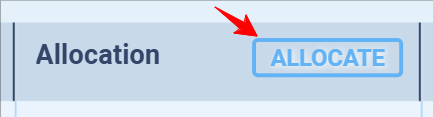
Click Allocate on Allocation.
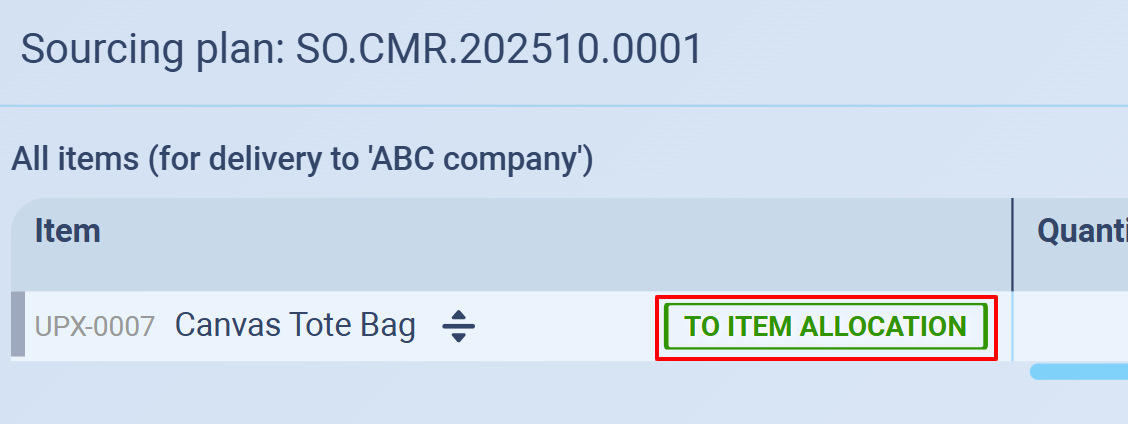
Hover over the item name and select To Item Allocation.
This opens Supplier allocation for that item.
Step 2: Split Quantity by Source
If the product will be fulfilled by more than one supplier (or mixed with your own stock):
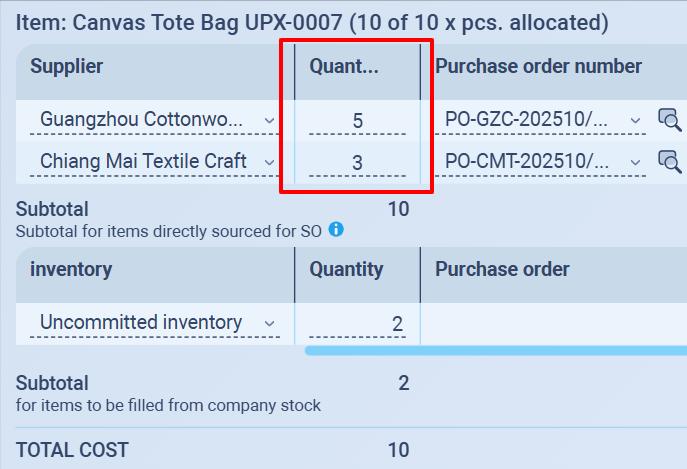
In the Quantity field, type the number you want to assign to the first supplier.
Press Enter — the system will automatically generate a new line for the remaining quantity.
Repeat the process to divide the total among different suppliers or your inventory.
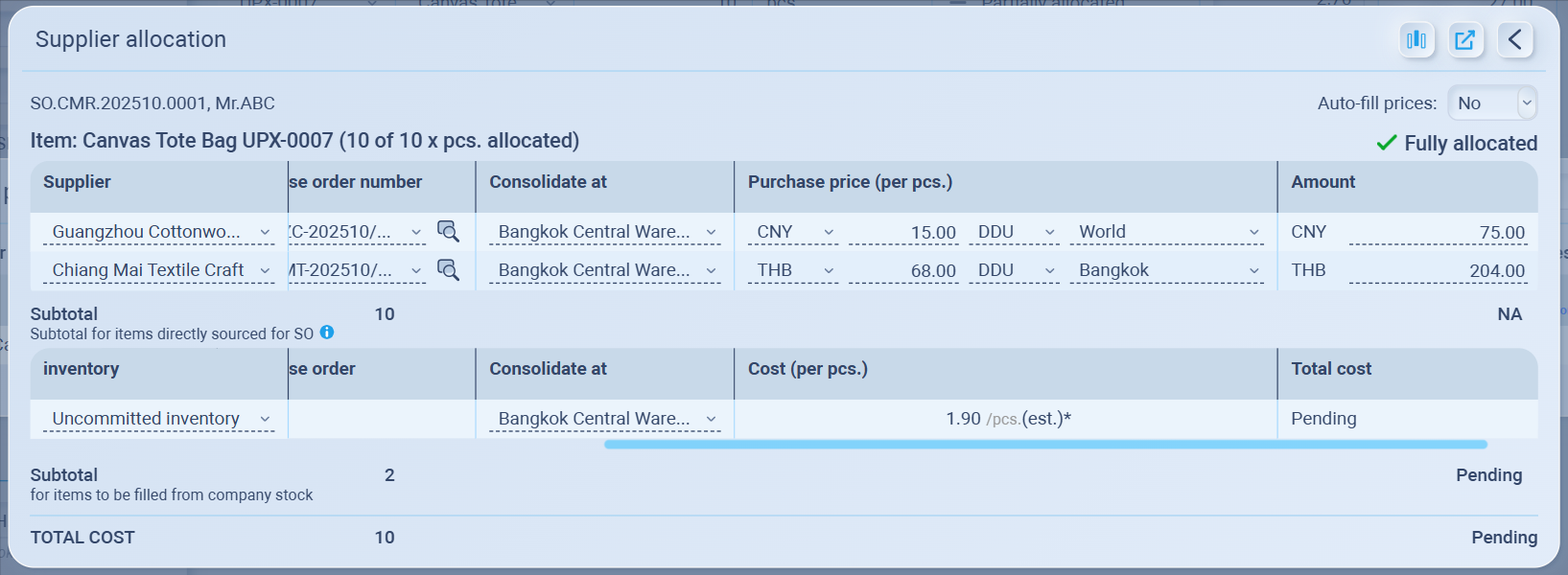
For example: If the customer ordered 10 pcs, you can split them like this:
5 pcs from Supplier A
3 pcs from Supplier B
2 pcs from your warehouse (Uncommitted Inventory)
The table automatically keeps the total = 10 pcs.
Step 3: Fill in Supplier Details
For each supplier row, fill in the required fields:
Field Description Supplier Select the supplier you’ll buy from. Purchase Order number Choose an existing PO or create a new one (click the small icon to view or open it). Consolidate at Choose where the goods will be received or combined (e.g., Bangkok Central Warehouse). Purchase price (per pcs.) Enter the unit cost and currency. Trade terms / Location Set the trade term (e.g., DDU, FOB) and select the related location.
(see guide about location here)Example:
Step 4: Add Uncommitted Inventory (Use Your Stock)
If part of the quantity will come from your own warehouse:
In the Supplier dropdown, select Uncommitted Inventory.
The system will automatically create a separate “Inventory” section below the supplier list.
Inside this section:
Set the quantity you want to use from stock.
Choose the warehouse (Consolidate at).
The system will automatically pull items from your remaining stock in that warehouse.
Anything not covered by inventory must be sourced from suppliers.
Step 5: Review and Confirm
Ensure the total allocated quantity matches the Sales Order quantity.
Verify supplier names, prices, currencies, and warehouses.
Once fully covered, the item will display ✅ Fully Allocated status.
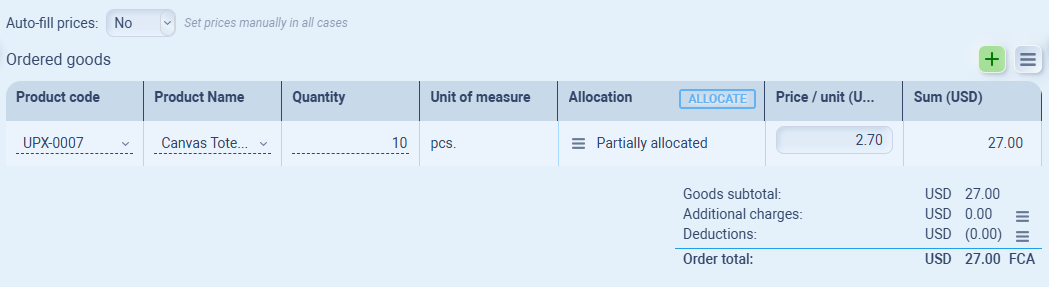
- The item will get Partially allocates on Allocation
⚠️ Important Note
If you edit or delete any quantity, Sourcemaster automatically adjusts the table to keep the total allocation = Sales Order quantity.
For example:
If you have 10 pcs split as 5 / 3 / 2, and remove one row, the system will rebalance or remove quantities to maintain 10 pcs total.
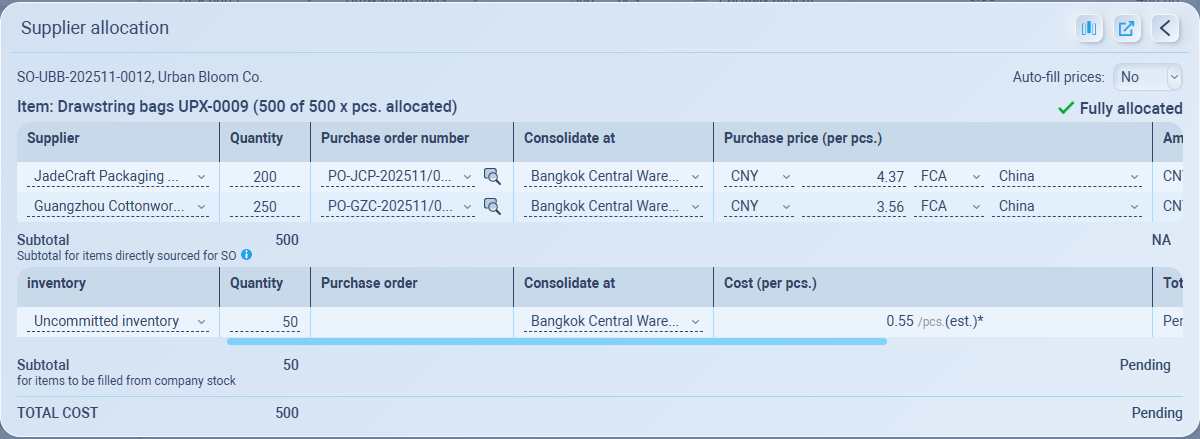
After allocating the order, you can see that Drawstring Bags UPX-0009 (500 pcs) are being sourced in three ways: two suppliers (200/250 pcs) plus 50 pcs from your own stock (Uncommitted inventory).
Each source has a different unit cost, which will directly affect your margin for this order.
Both suppliers will produce their portion and ship to your Bangkok warehouse, where you handle QC, timing, and consolidation before sending everything out as one shipment to the US.
💡 If this doesn’t solve your issue or you have more questions, feel free to reach out through our [contact form]. We’ll get back to you within 2–3 business days.
