In Sourcemaster, locations represent physical or trade-related sites such as ports, warehouses, factories, or offices.
They are mainly used in trade terms (INCO) for purchase and sales orders, ensuring accuracy when defining shipment points or destinations.
This feature helps standardize naming, streamline logistics coordination, and prevent manual errors when entering recurring locations.
How to Access
-
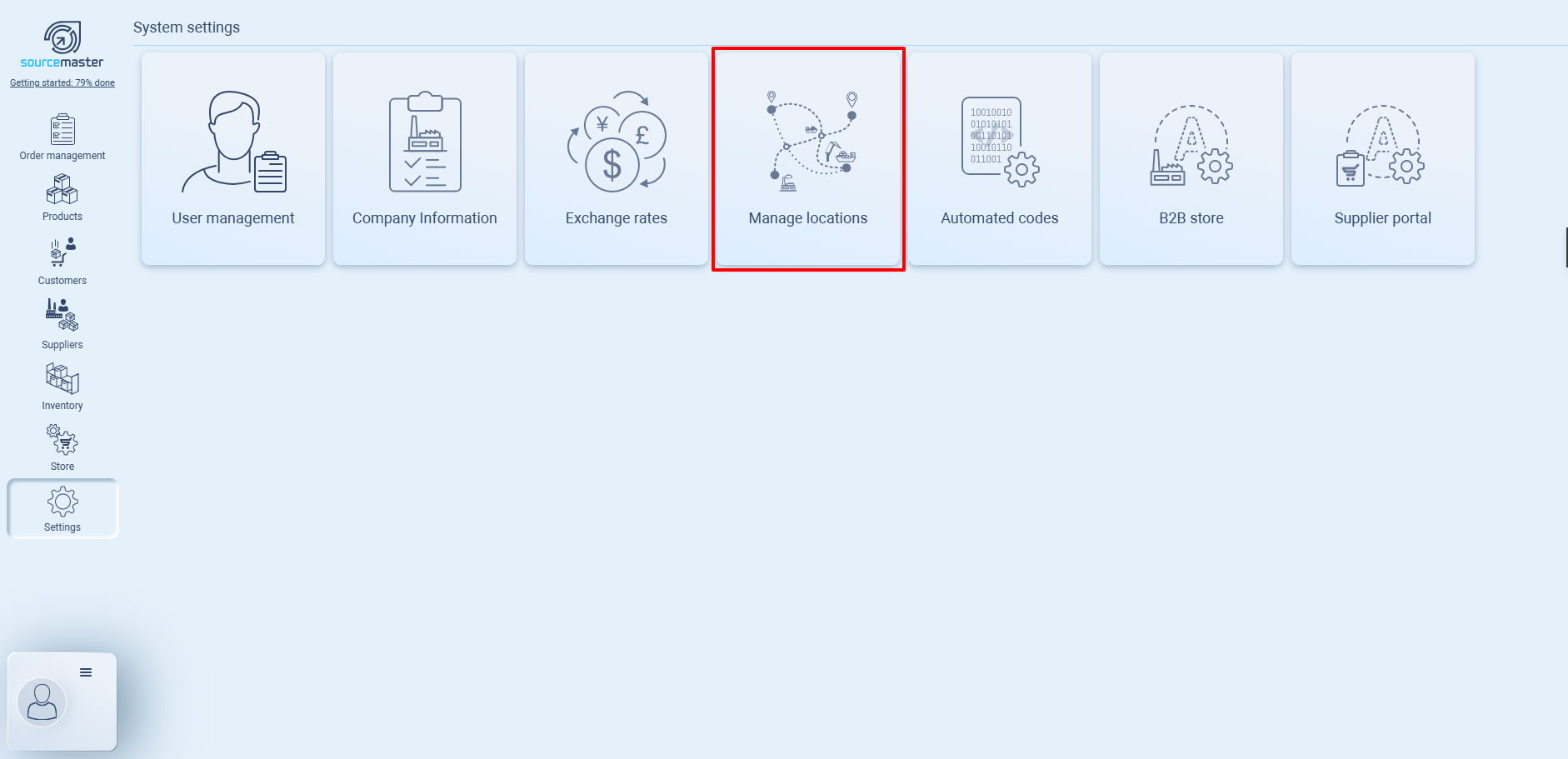
Go to Settings › Manage locations.
Adding a New Location
You can add new ports, warehouses, offices, or trade points to keep your operations and INCO terms organized.
-
Go to Settings › Manage locations.
-
Click the ➕ Add button in the top-right corner.
A new entry line will appear in the table.
-
Enter the following details:

-
Location name — Type the name of the location (e.g., Bangkok Port, Warehouse DFW-01).
-
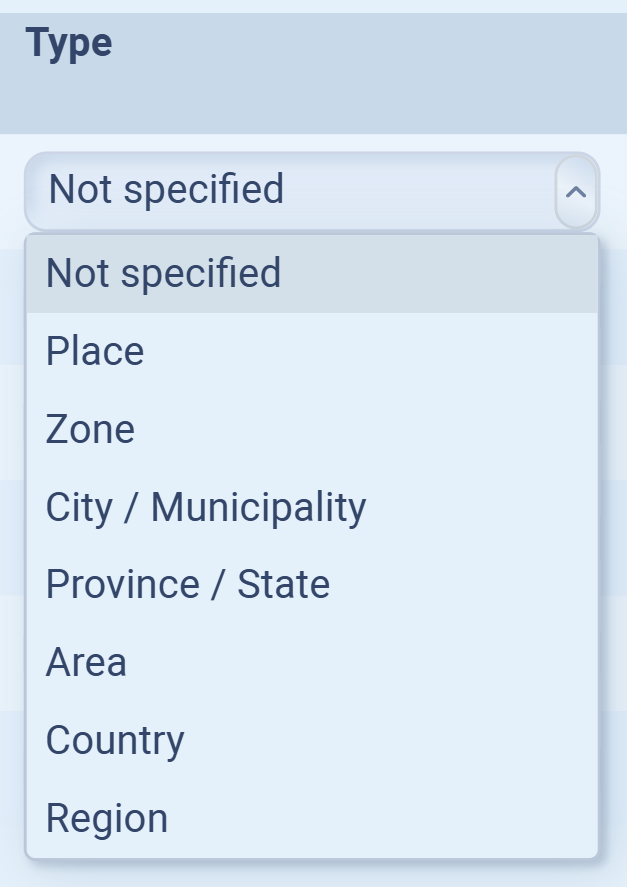
Type — Select the scale of this location from the dropdown list:
-
Region → group of countries or global area.
-
Country → national level.
-
Area → multi-state or sub-country region.
-
Province / State → state-level classification.
-
City / Municipality → city or local area.
-
Zone → industrial or port zone within a city.
-
Place → specific site, warehouse, or facility.
-
-
Belongs to — Link this location to its parent location.
-
This defines the hierarchy (e.g., Port of Los Angeles belongs to California, not the other way around).
-
Each smaller-scale location should belong to a larger-scale one to maintain clarity across reports and trade documents.
-
-
-
Once done, click Save (✔) or press Enter to confirm.
-
The new location will appear in the list and become available in Purchase Orders, Sales Orders, and Shipping (INCO) terms.
Understanding “Type” and “Belongs to”
Each location in Sourcemaster can be categorized by its Type (geographical or operational scale) and linked to a broader parent location through Belongs to.
This structure helps create a clear hierarchy, so your ports, warehouses, and offices can be organized from broadest region to specific site.
Type (Scale Levels)
| Type | Description | Example (U.S.) |
|---|---|---|
| Region | Broadest grouping that includes multiple countries. | North America |
| Country | National level. | United States |
| Area | Multi-state or sub-country grouping (used for internal clusters). | East Coast, Midwest |
| Province / State | State or provincial level. | California, Texas, New York State |
| City / Municipality | City or local area. | Los Angeles, Houston, New York City |
| Zone | Industrial or port zone within a city. | Port of Long Beach Zone, DFW Logistics Park |
| Place | Specific site or facility. | Warehouse DFW-01, Los Angeles Terminal A |
Belongs To (Parent Location)
The Belongs to field defines how locations connect hierarchically.
It links a smaller-scale location to its larger-scale parent — helping Sourcemaster understand geographic relationships for logistics, trade terms, and reporting.
Example hierarchy (U.S.):
-
Los Angeles Terminal A → Type: Place → Belongs to: Port of Long Beach Zone
-
Port of Long Beach Zone → Type: Zone → Belongs to: Los Angeles
-
Los Angeles → Type: City → Belongs to: California
-
California → Type: State → Belongs to: United States
-
United States → Type: Country → Belongs to: North America
This creates a logical top-down chain:
Region → Country → State → City → Zone → Place
✅ Best Practice:
Always assign smaller-scale locations (like warehouses or ports) to their immediate parent area, not the other way around.
For example:
✅ Long Beach Port → belongs to California
❌ California → belongs to Long Beach Port
Maintaining this order ensures accurate location data for INCO terms, shipment records, and multi-entity reporting.
💡 If this doesn’t solve your issue or you have more questions, feel free to reach out through our [contact form]. We’ll get back to you within 2–3 business days.
