Product Categories
Categories are the folders for your items (e.g., Shirt, Shoes, Accessories). You can create a simple list or a hierarchy.
Open the category map
-
Go to Products → click Product categories → View list .
-
You’ll see a map with Uncategorized product and a lane to Create new category.
Create a category
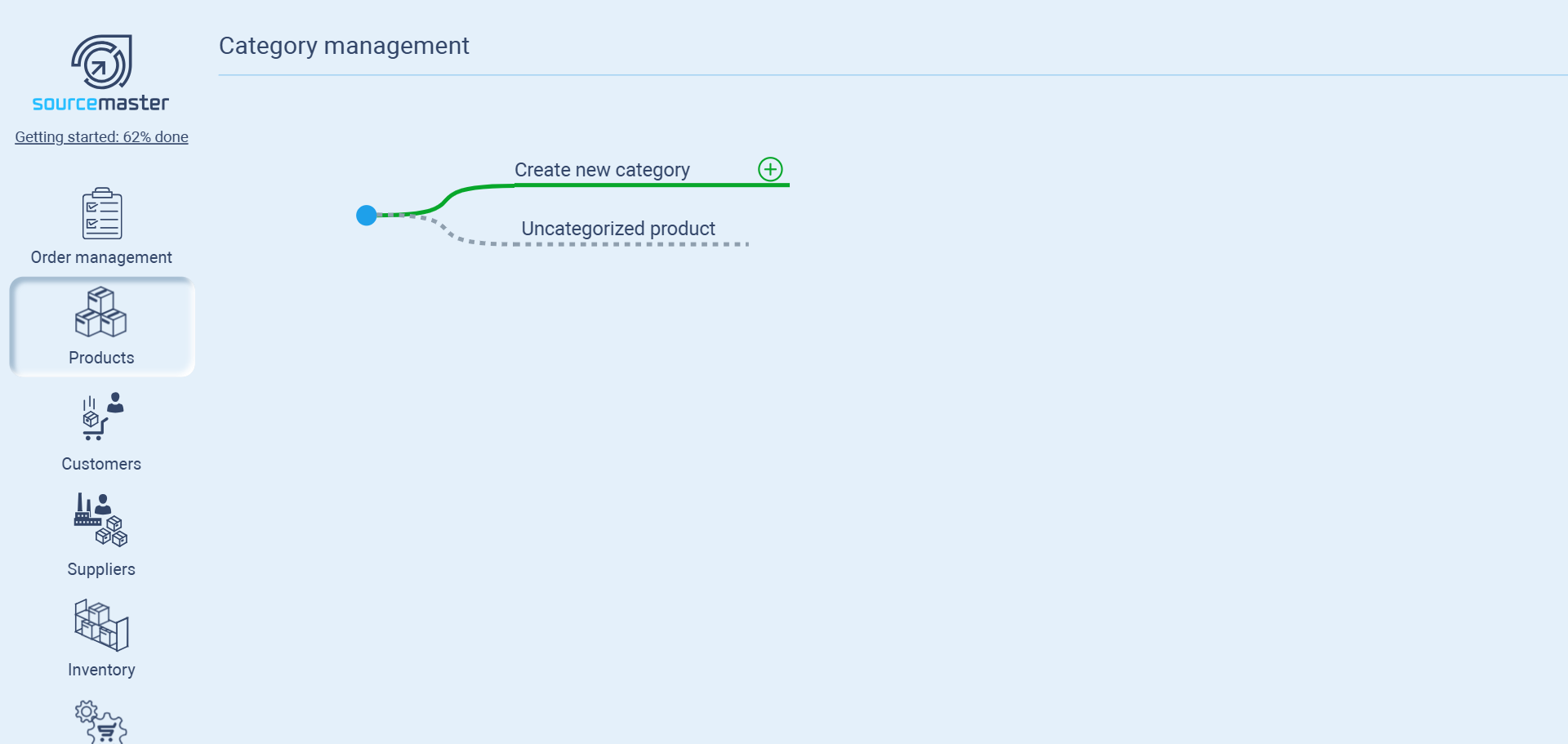
- Hover on starter point, until you see the new lane Create new category
-
Click a plus button ➕ (Create new category).
-
Enter Category name and Category code.
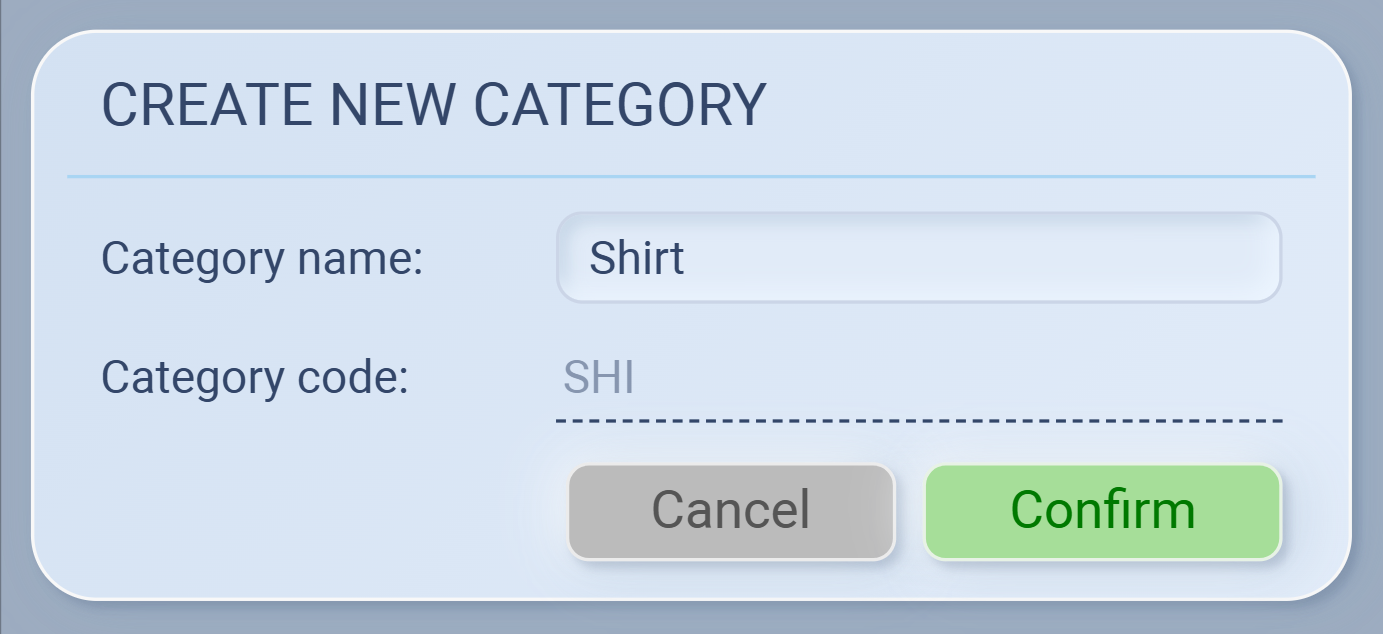
-
Confirm.
Tip: Codes are short labels (e.g., SHI for Shirt). They help with search and reporting.
Add a new category
-
Go to Products → Product Categories.
-
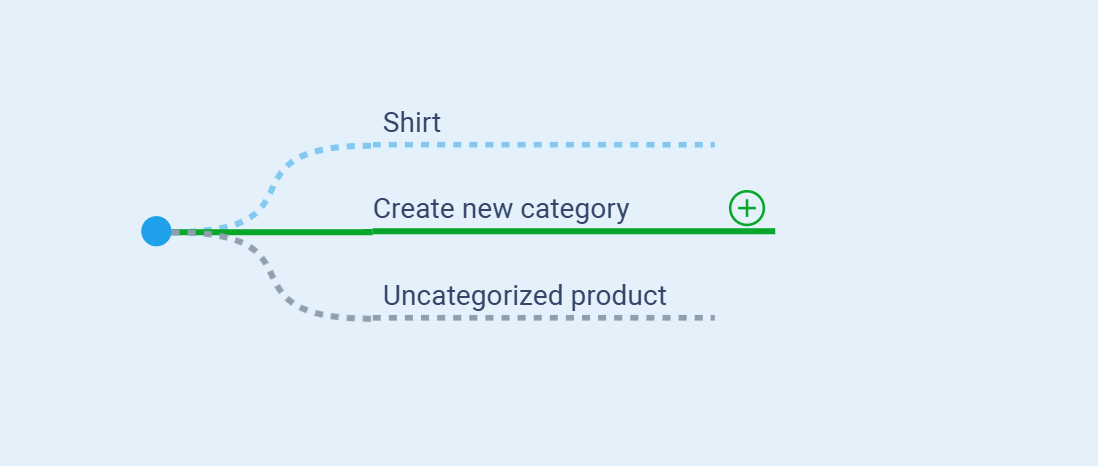
Hover the root node (blue dot) → click Create new category (+).
-
Enter Category name and Category code, then Confirm.
-
Example: Shirt → Code: SHI.
-
Add a sub-category
-
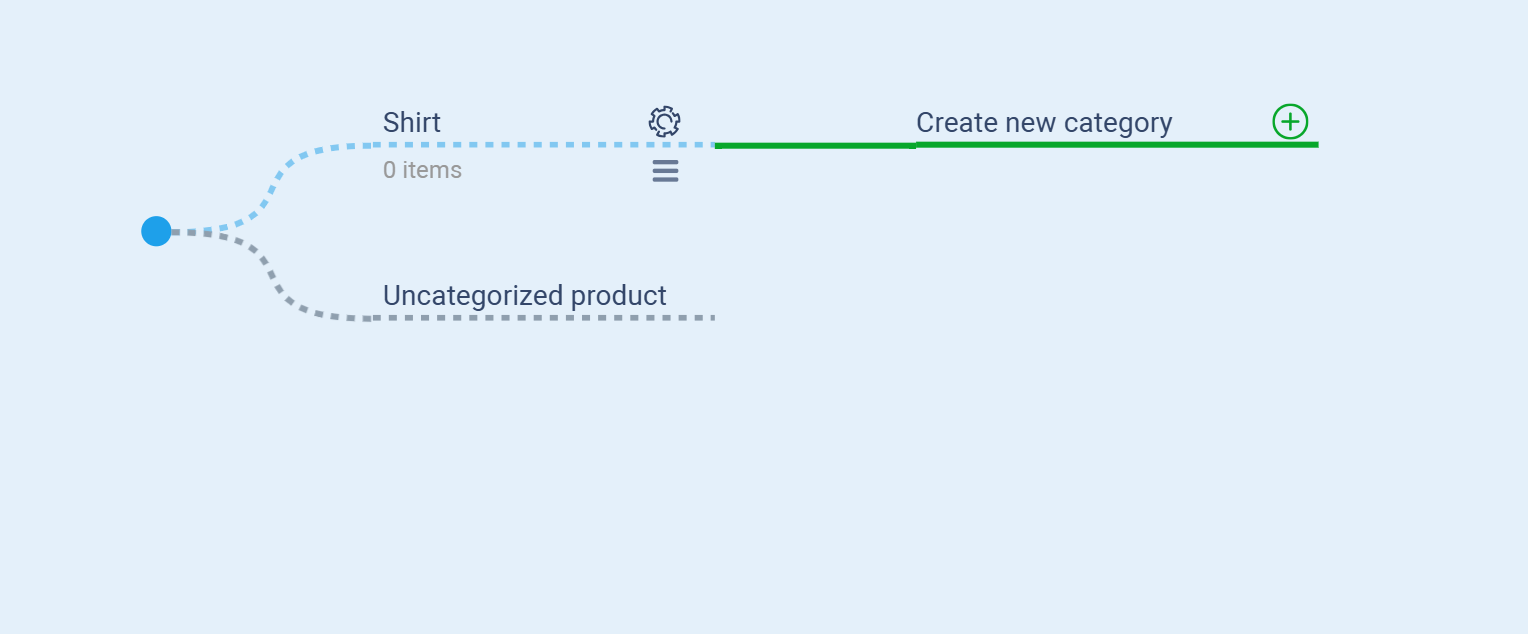
Hover on a parent node (e.g., Shirt).
-
Click Create new category (+) from that node.
-
Name and confirm.
-
Example: T-Shirt under Shirt.
-
Category settings (gear icon)
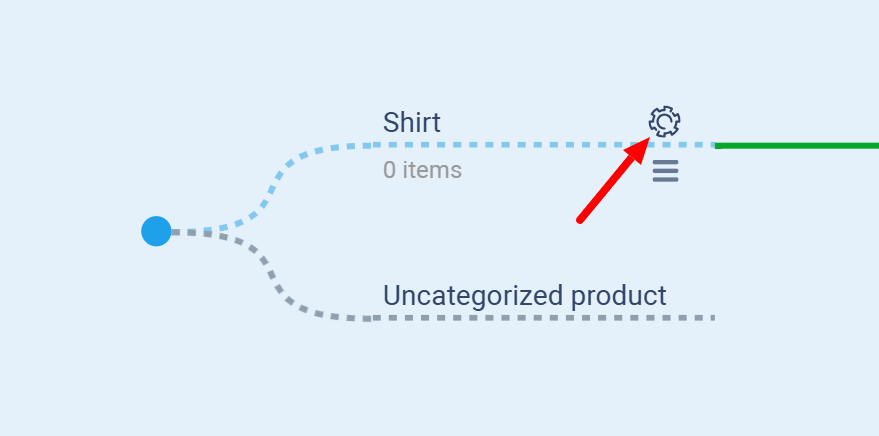
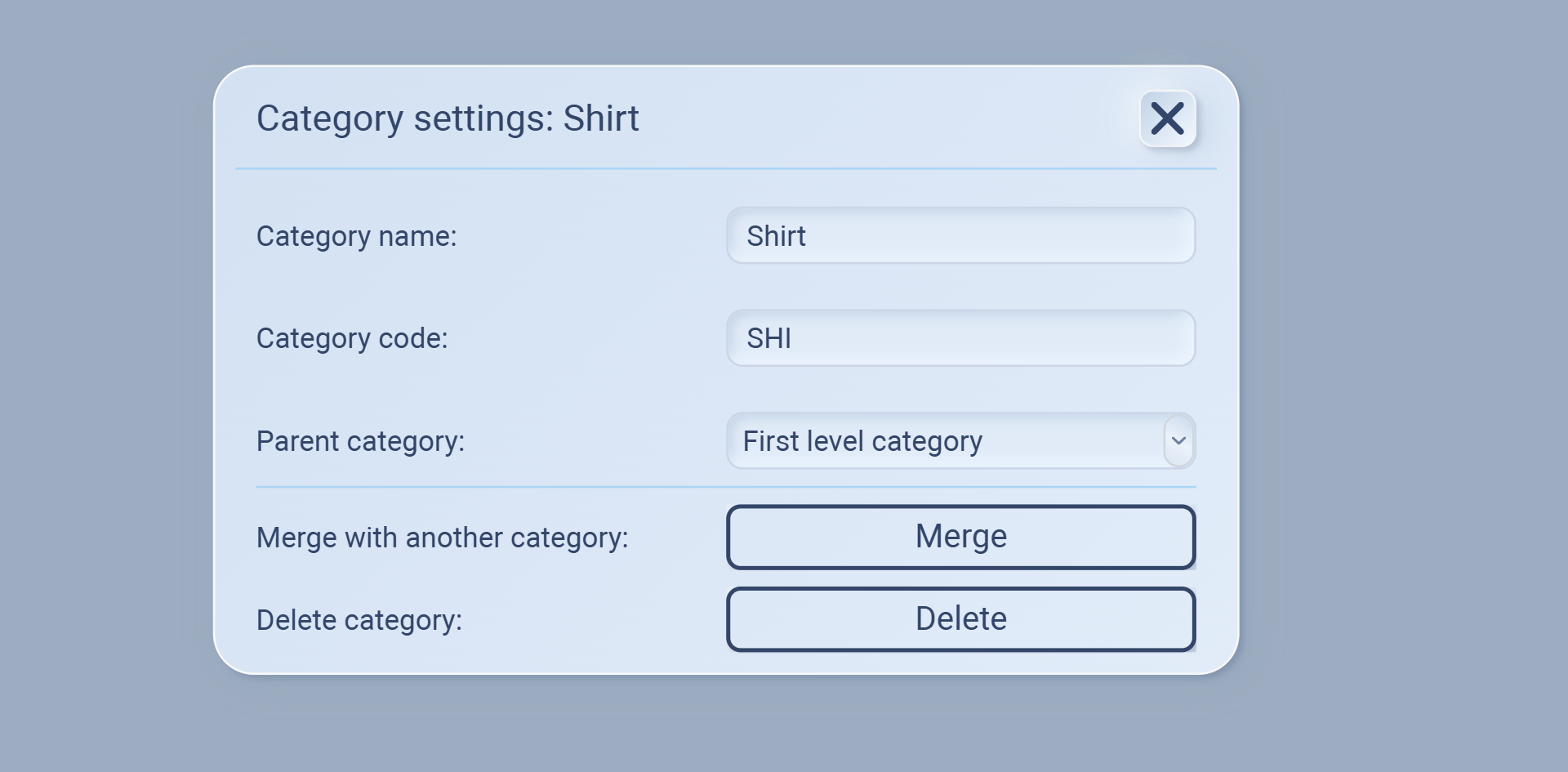
Click the gear next to a category to open Category settings. Here you can:
-
Rename the category (edit Category name).
-
Change the code (edit Category code) for easier search/reporting.
-
Re-parent / move the category under another one (set Parent category).
-
Merge this category into another (all items move; the source category is closed).
-
Delete the category (only possible when it’s empty and has no sub-categories).
Notes
Codes should be unique.
If you can’t delete, move/merge the items (and child categories) first.
Assign items to a category
-
When creating/editing a product, choose its category in the product form.
-
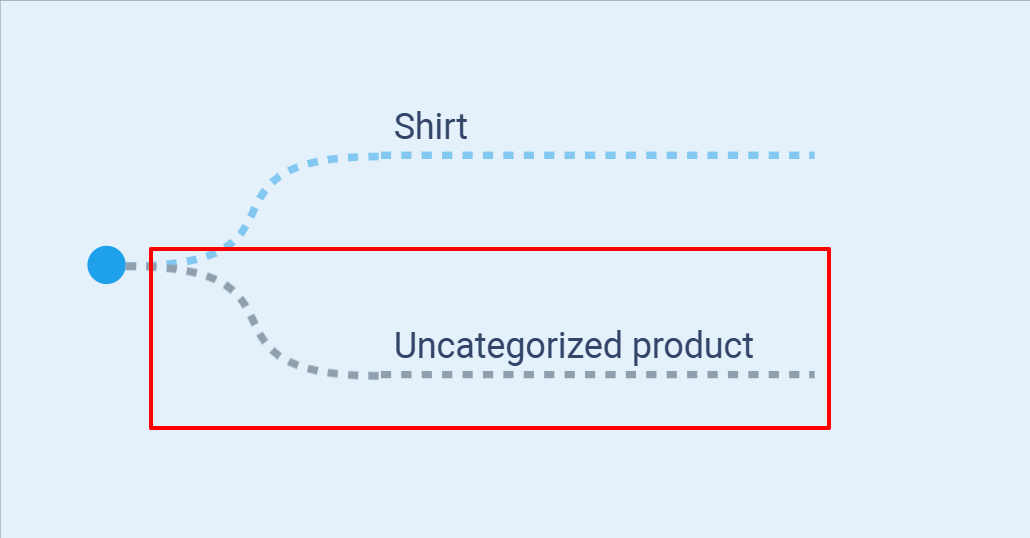
Anything not assigned stays under Uncategorized product (you can’t delete this node).
Uncategorized products
-
What it means: Any product that hasn’t been assigned to a category in your catalog will show here as “Uncategorized product.”
-
Why it matters: Without a category, sales of these products won’t be grouped in your stats (e.g., Apparel, Accessories). That can make trend analysis or comparisons less clear.
-
How to fix: Go to your Products module, open the item, and assign it to the correct category (e.g., “Shirt,” “Footwear,” etc.).
Product Stats
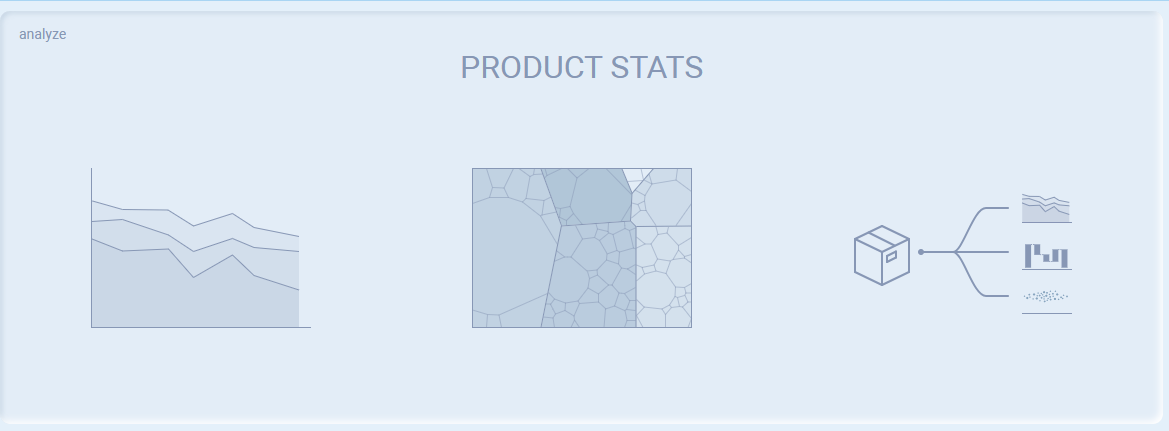
This section lets you analyze how your products perform through three modes:
-
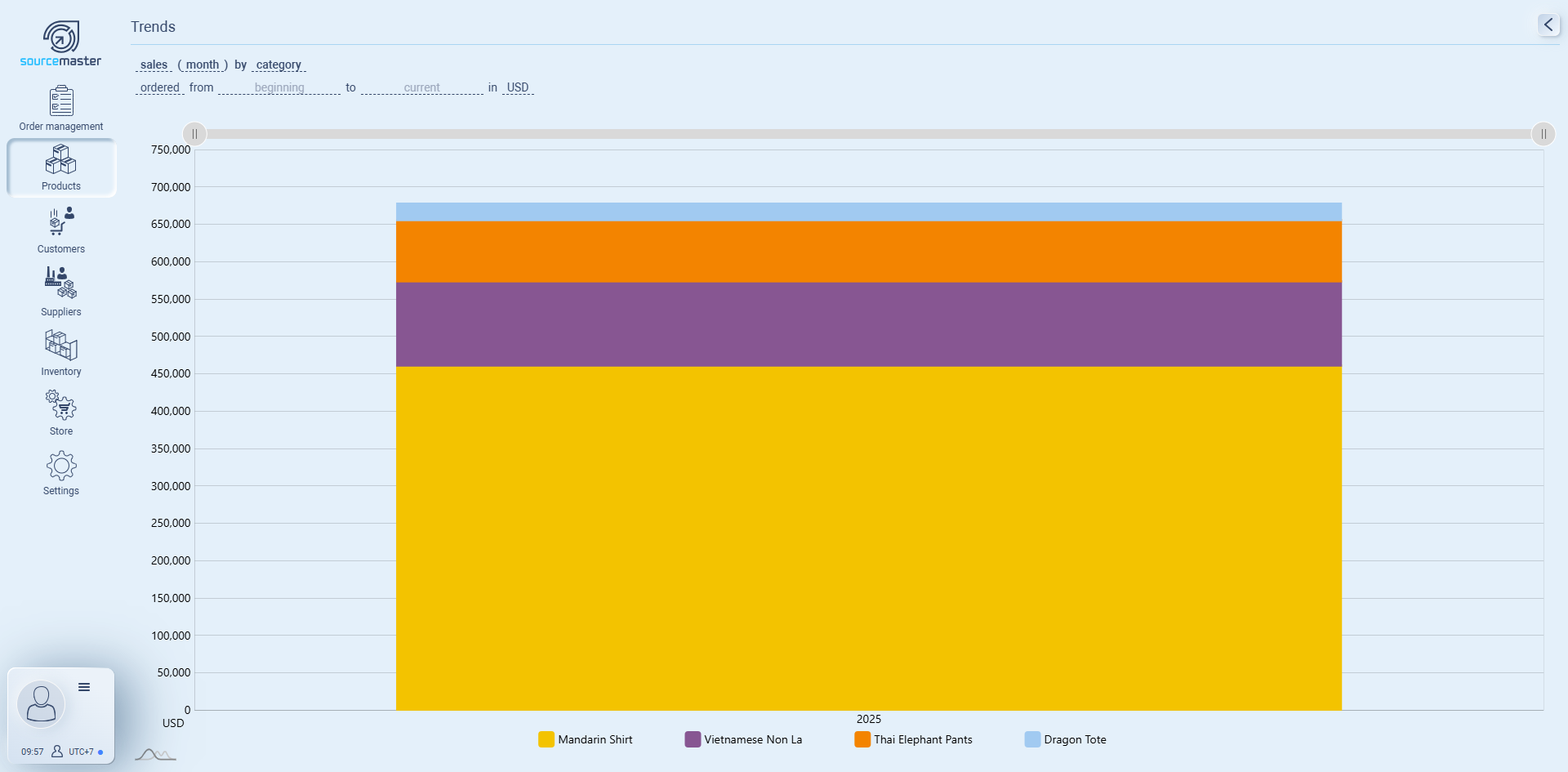
Trends – shows sales or order trends by time period, category, or currency. Example: “Sales by category from January to August in USD.” It’s good for spotting growth or decline patterns.
-
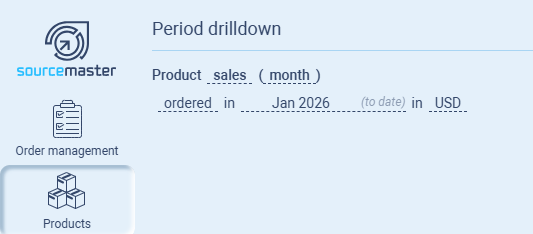
Period Drilldown – zooms into a specific month or period. Example: “Ordered sales in Aug 2025 (to date) in USD.” This gives a detailed snapshot of activity in a selected timeframe.
-
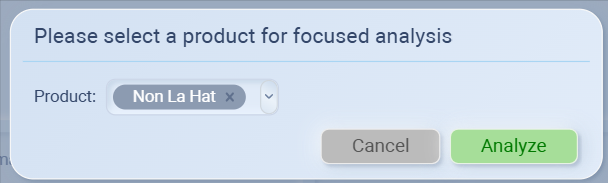
Focus – analyzes a single product in detail. You select one product (like Cotton T-Shirt White), then see order data: SO#, customer, order date, quantity, unit price, total sales, shipping and delivery dates. Great for understanding how one item is selling and moving.
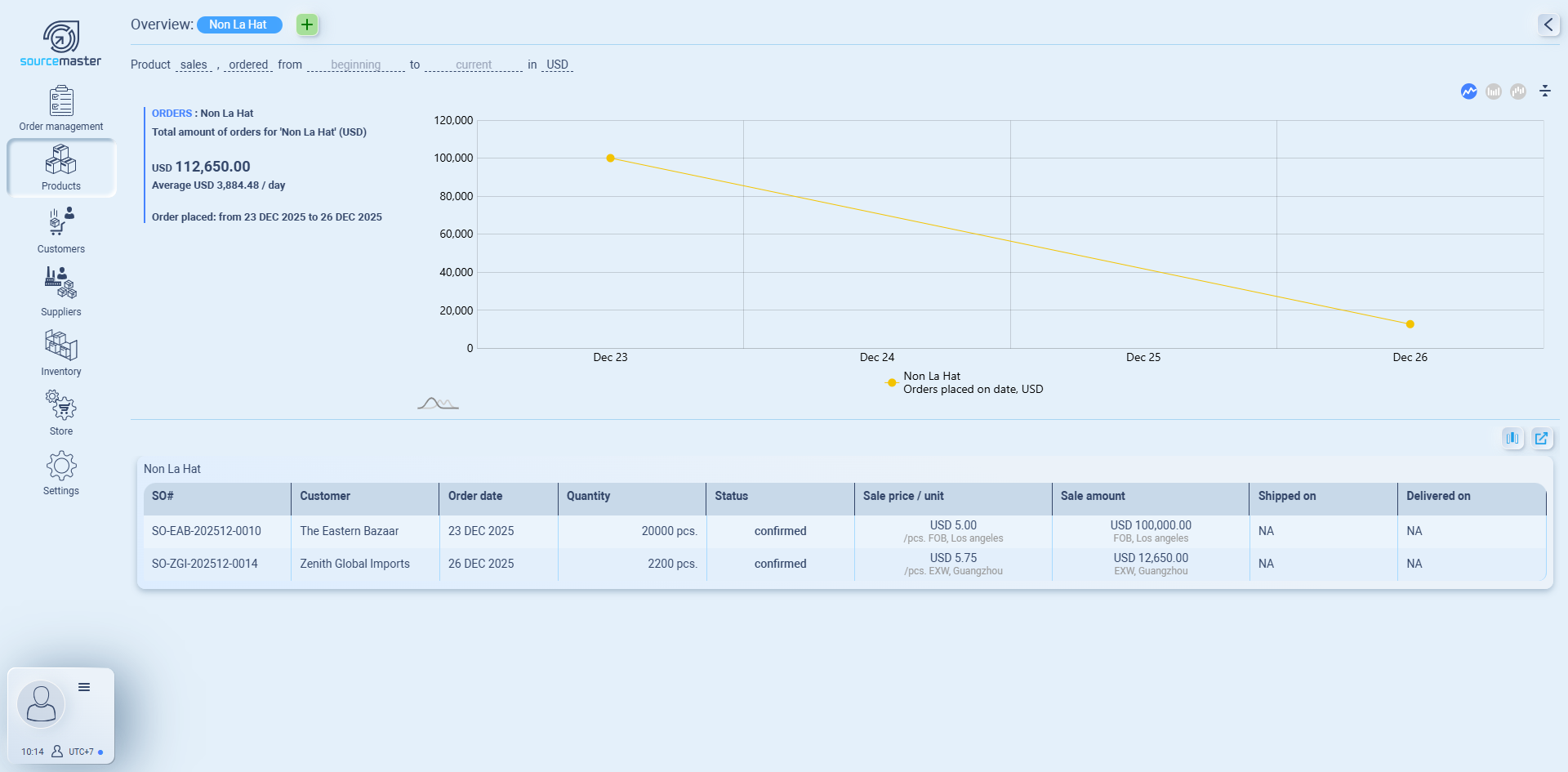
In short, Product Stats helps you switch between overall trends, specific time analysis, and deep dives into individual products — giving you both the big picture and product-level clarity.
💡 If this doesn’t solve your issue or you have more questions, feel free to reach out through our [contact form]. We’ll get back to you within 2–3 business days.
