Invite Your Team
Bring your teammates onboard so everyone can use sourcemaster with their own login and permissions.
1. Open User Management
-
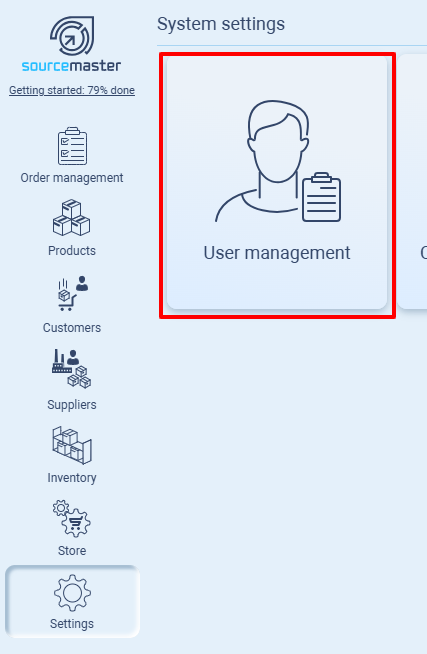
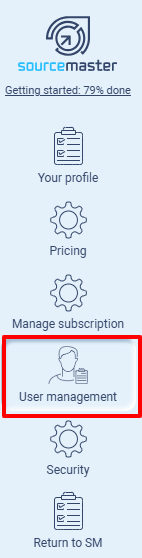
Go to Settings → User Management → User management (sidebar tab).
-
You’ll see a list of all users under your company.
2. Add a Seat
-
Click Add seat. (only for Basic and Pro)
-
An Idle seat will appear. Click Manage.

3. Assign to a User
-
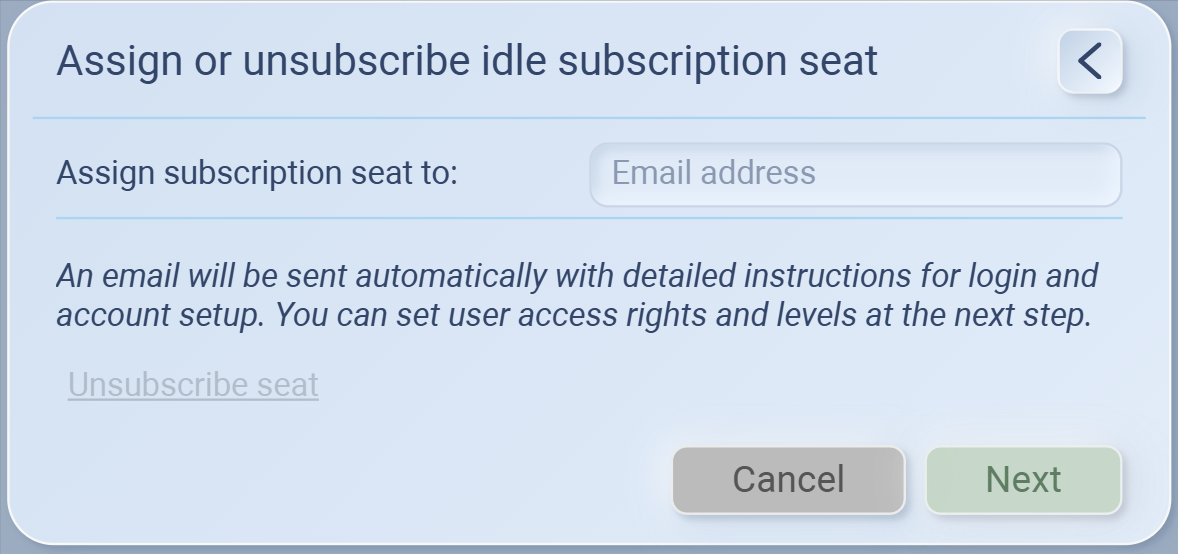
Enter your teammate’s email address (make sure it’s not already registered in Sourcemaster — we recommend using their work email).
-
Click Next.
-
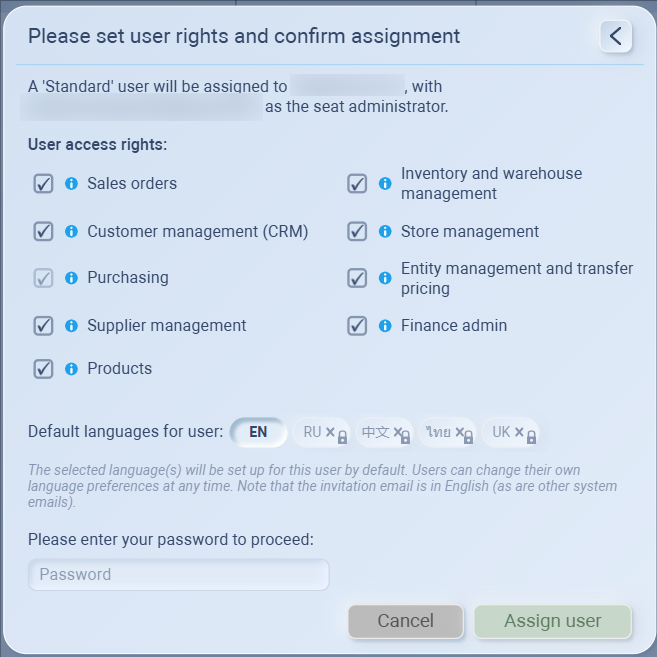
Set User Rights (CRM, Finance, Warehouse, etc.) and confirm.
-
Enter your own password to verify, then click Assign User.
-
Check Spam/Junk, Trash, and Promotions tabs.
-
Search your mailbox for noreply@sourcemaster.pro and the subject “invites you to join … in Sourcemaster”.
-
If still missing, ask IT to allowlist sourcemaster.pro and noreply@sourcemaster.pro.
-
Click Resend invite from Settings → User management (on that user’s row).
4. Team Member Registration
-
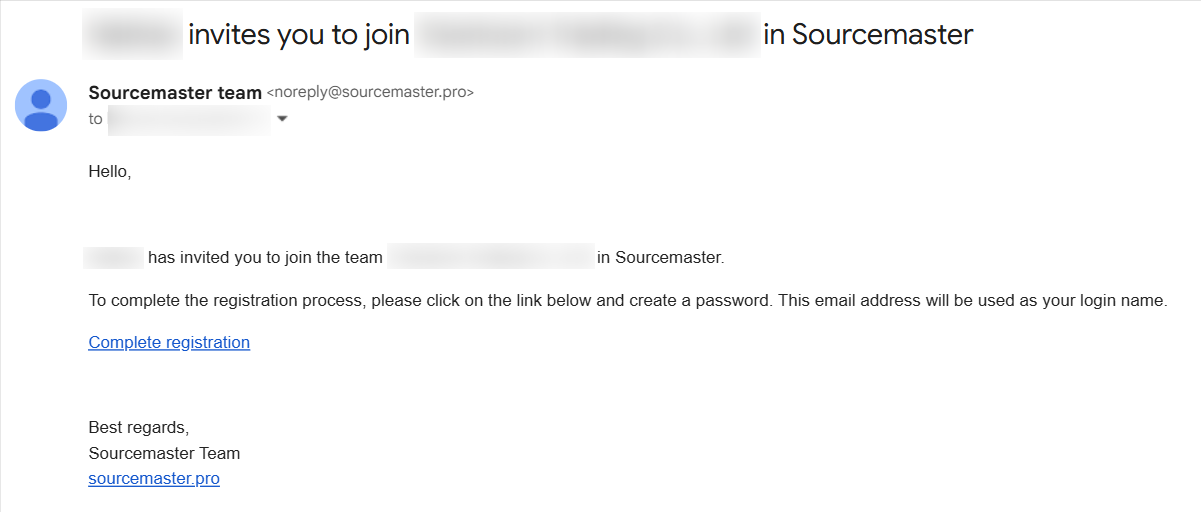
The invited teammate will get an email: "[Your Name] invites you to join [Company Name] in Sourcemaster".
-
They must click Complete registration.
-
Fill in their Name, Surname, and Password, then click Confirm.
-
From now on, they log in with the registered email and password.
5. Manage Users
Once added, go back to User Management:
-
Change User Class: Admin or Standard.
-
Set Access: Full or Suspended.
-
Adjust Rights anytime by clicking the settings ⚙️ button.
💡 If this doesn’t solve your issue or you have more questions, feel free to reach out through our [contact form]. We’ll get back to you within 2–3 business days.
